Before increasing ad spend, check whether your electrician website tells customers where you work, which jobs you accept and what happens after they enquire. Then confirm that the form works and the enquiry reaches someone responsible for responding.
More traffic will not correct unclear service boundaries, an intrusive upload request or a button that promises a quote when the next step is only an assessment. The aim is not simply more electrician website enquiries. It is enquiries that customers understand and your business can assess sensibly.
Can customers establish whether the job is a fit?
Review the page your adverts send people to, not just the homepage. Someone landing directly on an installation page should not need to search elsewhere for coverage or contact details.
State the real service area
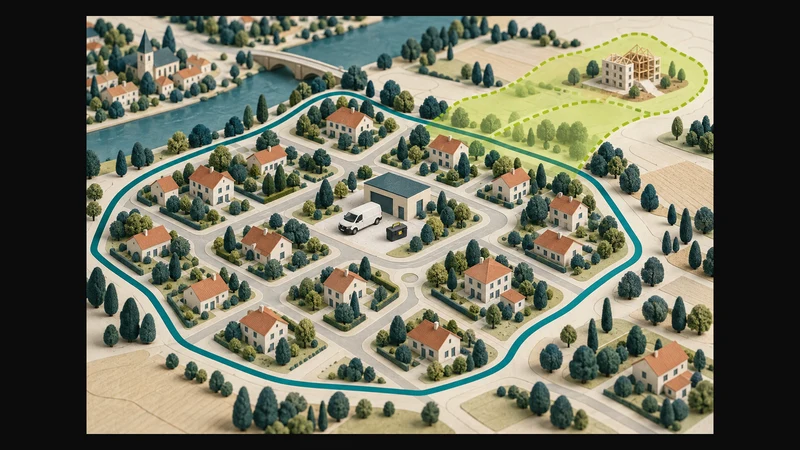
Name the towns, suburbs or practical boundaries you actually serve. Distinguish normal coverage from areas where availability needs confirmation. If travel affects whether you accept a job, explain that before the form.
Ask for a suburb or town initially. A full street address can usually wait until you are arranging a visit. Do not imply that you have an office in every area you cover.
Name the work you accept
Use customer-friendly categories that reflect your actual services. These might include planned installations, alterations, fault enquiries or commercial maintenance, but only include work the business genuinely undertakes.
Give visitors a short description field and a “not sure” option. They should not need to diagnose an electrical problem to contact you.
If you do not provide an emergency service, say so near the contact route. A submission should never appear to dispatch an electrician automatically. State contact availability you can support rather than implying continuous monitoring.
The related guide to separating installation leads from repair calls addresses the campaign-side decision. Here, check that the destination page describes the same work as the advert.
Are your credentials specific and genuine?
Replace broad claims such as “fully certified for everything” with accurate, verifiable information about the business and the people responsible for the work.
Before displaying a registration, qualification or membership, confirm:
- Who holds it: the business or a named individual.
- What it covers.
- Whether its status and wording are current.
- Whether any logo or badge may be used in that context.
Do not imply that one credential covers every advertised service. Have the person responsible for the electrical work approve technical descriptions and credential wording.
Use genuine project evidence where available. A useful caption explains the type of work without disclosing the customer’s private details. Publish images only with appropriate permission. Never present stock or generated pictures as completed jobs.
Does the form collect enough, without collecting everything?
A useful starting form asks for a name, a usable contact method, suburb or town, job category and short description. Add property type or preferred timing only where these help assess the enquiry. Explain that a preferred date is a request, not a confirmed booking.
The W3C Forms Tutorial recommends short, simple forms that ask only for information needed for the process. It also explains the importance of associated labels and clear instructions.
Apply that guidance practically:
- Use visible labels, not just placeholder text inside fields.
- Identify required and optional fields.
- Avoid requiring both email and telephone unless both are genuinely needed.
- Ask customers to describe their request, not provide a technical diagnosis.
- Keep identity documents, financial records, passwords and property access codes out of the initial form.
For each required field, ask: what decision does this answer help us make? If nobody uses it, consider removing it.
Should customers upload photos?
Offer uploads only if someone will use them and you have agreed how they will be handled. For a general enquiry form, keep photos optional so customers can contact you without taking one.
Explain that images provide context, not confirmation of the work required or its price. Ask customers to exclude faces, documents, access details and other private information. Never ask them to open equipment, expose wiring or approach a hazard to obtain a photograph.
Before enabling uploads, agree with your website provider:
- Where files will be stored and who can access them.
- How files will be kept out of public galleries and publicly accessible storage.
- Which file types and sizes will be accepted, with limits shown before upload.
- How customers can remove a mistaken attachment before submitting.
- When files will be deleted and who is responsible.
- How the privacy notice will explain the actual handling of enquiries and images.
These are practical design recommendations, not a POPIA compliance guarantee. If handling arrangements are unclear, leave uploads off. Request suitable images later through an agreed channel if needed. Do not reuse enquiry photos as marketing material without appropriate permission.
Is the next step an assessment or a quote?
Match the button to what your business can provide at that stage.
If you need to review the request and perhaps arrange a visit, “Send an enquiry” may be clearer than “Get an instant quote”. If you use “Request a quote”, explain that further information or a site assessment may be needed before one can be issued.
Describe your stages clearly:
- Enquiry: the customer asks about possible work.
- Initial review: the business checks service area, job type and missing information.
- Site assessment, if needed: a visit is arranged separately to assess the proposed work.
- Quotation: the proposed scope, price, exclusions and terms are provided separately.
- Booking: a visit or work appointment requires confirmation, not merely a form submission.
Do not describe an acknowledgement, photo review or preliminary estimate as a binding quotation. Keep website wording consistent with your actual quotation and acceptance process. If an assessment or call-out may carry a charge, explain when that charge will be disclosed and agreed before a visit is confirmed.
Illustrative example: a planned lighting installation
A homeowner wants additional outdoor lighting. The landing page identifies planned lighting installations as a service and states the electrician’s actual coverage.
The form asks for the suburb, contact details and a brief description. A photo is optional, with privacy and safety guidance. The button says “Send an installation enquiry”.
After successful submission, the acknowledgement explains that the business will review the request and contact the customer about the next step. It states that no visit is booked and no quotation has been issued.
The person receiving the enquiry can now check location and service fit before arranging anything. The customer has not been led to believe that a photograph establishes the final scope or price.
Can someone complete the journey on a phone?
Ask your website provider to check the enquiry path on mobile and with a keyboard, including unsuccessful submissions. Use clearly labelled test enquiries without real customer information.
Check a submission without a photo, an invalid contact entry and, if uploads are enabled, a file that exceeds the stated limit. Customers should be able to understand the problem and recover without starting again unnecessarily.
The W3C guidance on form notifications recommends clear success feedback and error messages that identify the problem and explain how to correct it.
Check loading and interaction behaviour too. Google’s Web Vitals guidance identifies loading, interactivity and visual stability as core aspects of page experience. Look for a slow contact section, an unresponsive button or a moving layout that disrupts form completion.
Finally, confirm delivery. A success message alone does not establish that the responsible person received the enquiry or can access its attachment. Assign a primary recipient and a backup for absence.
Your decision checklist before increasing spend
Use these checks to decide what needs attention first:
- Actual service coverage is visible before the form.
- Job categories match the advertised services.
- Credentials and project evidence have been verified.
- Required fields have a clear operational purpose.
- Optional uploads have safe instructions and agreed handling.
- Enquiry, assessment, quotation and booking are clearly distinguished.
- Mobile use, keyboard access and error recovery have been checked.
- Test submissions reach the responsible person, including attachments.
- Recent enquiries can be reviewed by area, job type and next step, not just counted.
Fix before increasing spend: broken delivery, exposed uploads or misleading promises about prices, availability or bookings.
Investigate fit before buying more traffic: if enquiries arrive but concern areas or services you do not cover, review page wording alongside campaign targeting. Record why enquiries are unsuitable rather than treating every submission as equally useful.
Consider a controlled increase: if the journey works, suitable enquiries arrive and someone can handle them, you have a better basis for testing additional spend. These checks do not guarantee profitable jobs.
Digital 4 Jesus’s website design and development service addresses service content, responsive layouts and contact journeys. To discuss a focused improvement, share your website address, priority electrical services and the enquiry problems you want to resolve. Leave customer records and private job photos out of that initial message.